
No 9 in the series: 20 Useful Things to Make You a Facebook Super-User
Checked on Facebook desktop in the UK, 17 October 2026.
Has Facebook decided you need another pair of shoes? Or a kitchen gadget you looked at once, three weeks ago, and have been followed by ever since?
Some adverts are useful. Others are the online equivalent of somebody following you around a shop, waving a leaflet. You can give Facebook a better idea of what you want to see, and tell it which advertisers have outstayed their welcome.
You won’t get to choose every advert. But you can take back a little control. Let’s do that.
1First, find your Facebook ad preferences
These settings belong to your personal account. You don’t need a business Page, Ads Manager or an advertising account.
On a computer
- Open Facebook and click your profile picture in the top-right corner.
- Choose Settings & privacy, then Settings.
- Under Your account, click Meta Account.
- Choose Ad preferences in the left-hand menu.
- Open Manage ads.

Tap or click the image to enlarge.
Does yours say Accounts Centre? That’s fine. Meta is gradually replacing Accounts Centre with Meta Account. Open whichever appears in your settings, then look for Ad preferences. Some versions call the advert-management tab Customise ads or Customize ads.
On the Facebook phone app
Open Menu, then Settings & privacy → Settings. Look for Meta Account or Accounts Centre, then Ad preferences. The position of Menu and the wording can differ between iPhone, Android and app versions. The screenshots in this guide are from the desktop website.
You can also try opening Ad preferences directly while signed in.
2Tell Facebook which advert topics you want less of
If a whole subject is getting on your nerves, start here.
- In Ad preferences → Manage ads, scroll to Ad topics.
- Click See all.
- Choose a topic from the list. View and manage topics opens more options. There is also a search box.
- Choose See less for a subject you would rather see fewer adverts about.
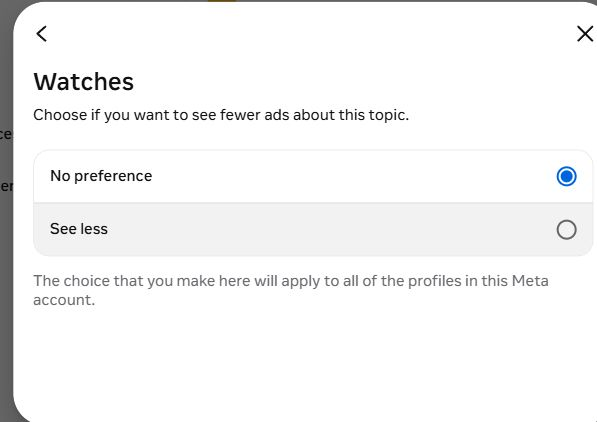
For example, the Watches screen offers No preference and See less. No preference is the normal setting. It is not a request for more watch adverts.
Tap or click the image to enlarge.
To revisit your choices, return to Ad topics and look under Your ad topic choices. Use Review topic choices to manage them. Read the note about which profiles a change will affect, especially if Facebook and Instagram are connected.
3Had enough of one particular advertiser?
Perhaps you don’t mind clothes adverts. You just don’t want to see the same shop every time you sit down with a cup of tea.
- Return to Ad preferences → Manage ads.
- Find Advertisers you saw ads from and click See all.
- Choose the advertiser.
- Click Hide ads, following any confirmation Facebook displays.

Tap or click the image to enlarge.
This is an advertising preference. It is separate from blocking somebody’s Facebook profile or Page, and it won’t remove every other company selling similar things.
4Deal with an unwanted advert while you’re scrolling
You don’t have to go hunting through Settings every time.
- Find the advert in your Feed and open its three-dot menu.
- Choose Hide ad to dismiss that advert, if offered.
- To investigate, choose Why am I seeing this ad? instead.
The explanation can show how your activity and the advertiser’s choices contributed to the advert appearing. Look for options to hide that advertiser’s adverts or update your ad preferences.
Use Report ad when there is a genuine problem, such as a scam. An advert being boring is a good reason to hide it, but isn’t the same as breaking Facebook’s rules.
5Can you ask for more adverts you actually like?
There isn’t a shopping list where you can order “gardening, books and holidays, please”. In the topic settings checked for this guide, the choices were No preference and See less, rather than a universal See more button.
Meta uses activity to help decide which adverts to show you. Interacting with things you actually like can contribute to those signals, but it doesn’t guarantee a particular mix of adverts.
My advice? Use Facebook normally and make use of its explicit controls when something is unwelcome. You don’t need to click on a pile of adverts to train it.
6What about adverts that follow you from other websites?
That’s a separate choice about the information used to personalise your adverts.
- Open Ad preferences and select Manage info.
- Choose Activity information from ad partners.
- Select Review setting.
- Read the choices. If you don’t want this information used for advert personalisation, select No, don’t make my ads more relevant by using this information, then Confirm.
There is a trade-off: less information used for personalisation can mean adverts that are less relevant to you. It won’t remove the adverts or switch off every other source of personalisation. Facebook also has a separate Audience-based advertising setting for advertisers using your activity or information.
If your version uses different wording, read the explanation before changing anything. These are choices about your information, not a requirement for getting rid of an irritating advert.
7A few things these settings won’t do
- Remove every advert. Ad preferences manage your advertising experience. A subscription without ads, where available, is a separate paid option.
- Remove every suggested post. Suggested content and paid adverts are different. Look for the Sponsored label when identifying an advert.
- Guarantee an instant, perfect result. You may still see related adverts, and another advertiser can promote similar products.
Start with the worst offender. Hide that advertiser, review a few topics and see whether your Feed becomes a little less irritating. Facebook still controls the sandpit, but you can at least stop politely accepting every leaflet.
Browse the rest of the Facebook Super-User series, or revisit No 8: Tighten Your Facebook Security.
Sources and updates
Instructions and screenshots checked in a UK Facebook desktop account on 17 October 2026. Phone guidance is based on Meta’s Help Centre; it was not tested on a phone for this article. Menus can vary by account, country and app version.