

“I sent you a message.” You check Messenger. Nothing. Before you accuse your friend of imagining the whole conversation, check the places Facebook has tucked it away.
There is no mysterious second Facebook account to unlock. There are message requests, spam filters, archived chats and separate invitation lists. Some contain useful messages. Others contain a handsome stranger who urgently needs your bank details. We will leave him where he is.
This guide shows you where to look on a computer and what to look for on your phone, plus a few useful message-finding tricks that do not repeat the other topics in the 20 things series.
A stranger messaged you?
Check Message requests, including Spam.
An old chat vanished?
Check Archived chats and search Messenger.
An invitation went missing?
Look under Pages or Events, rather than your message inbox.
1The inbox you might not know you have
When somebody you are not connected with sends you a message, Facebook may put it in Message requests instead of your main Chats list. There are exceptions: Meta lists Marketplace contacts and some businesses you have already interacted with among those who can message your Chats list directly.
That means an empty main inbox does not prove that nobody has tried to contact you. A message from a seller, an old acquaintance or someone replying to your group discussion can be sitting somewhere else.
On a computer
- Open Facebook messages. You can also start with the Messenger icon at the top of Facebook and open the full messaging view.
- Beside the Chats heading, click the three dots. In the desktop version checked for this guide, the button is labelled Settings, help and more.
- Choose Message requests.
- Check You may know, then check Spam as well.
If you are using Facebook’s smaller Chats panel, Meta calls the three-dot button Options. The key destination is still Message requests.
On Android or iPhone
- Open the Messenger app.
- Open its Menu or your profile picture, depending on the version you have.
- Look for Message requests.
- Check both You may know and Spam, where those tabs appear.
Meta’s app help still describes a profile-photo route. Some app layouts put this behind Menu instead. If yours looks different, use Messenger’s Help and search for message requests, or use the computer route above.
Do not rely on the red notification dot. Checking these folders directly is more useful than waiting for Facebook to draw your attention to every request.
2Check Spam, but keep your common sense switched on
Spam is part of the message-request area. It is not your email junk folder, and it is not the same as Archived chats.
Meta filters messages it thinks are spam. Filtering is useful, but it is not a guarantee that everything in Spam is rubbish or everything outside it is safe. If you are expecting a message, it is worth a look.
What happens if you reply?
Replying to a message request connects you with its sender. Meta says this opens the conversation and lets you see media they sent. Accepting a request moves it into your regular Chat list.
So do not send a polite “Who are you?” simply to inspect a suspicious request. Read the available information, check who it is and use the Block, Report or Delete controls when appropriate.
Deleting a request is permanent. Meta says you cannot see that message again after deleting the request. Archive and Delete are very different buttons.
Can they tell you have read it? Do not treat message requests as a general trick for secretly reading conversations. The important boundary is whether you accept or reply; ordinary chats have their own read-status behaviour. This guide does not promise invisible reading.
A message saying your Page will be deleted, you have won a prize or you need to send a login code deserves particular suspicion. Open the relevant Facebook feature yourself rather than following the message’s login link. For the wider account checks, see Tighten Your Facebook Security.
3An old conversation may be archived
Archiving hides a conversation from the main inbox while keeping its history. It is useful for tidying up, right until you forget that you did it.
Find an archived chat
- On a computer, open Facebook messages.
- Click the three dots beside Chats.
- Choose Archived chats.
- Find the conversation. Use its options menu and Unarchive chat if you want it back in your inbox.
On a phone: look in Messenger’s Menu or profile menu for Archive or Archived chats. You can also search for the person or conversation.
Meta says a new message from that person will normally return an archived chat to the inbox. Deleting a chat, however, permanently removes its history from your inbox. Finding the person’s name again does not restore a deleted conversation.
4Where are the Page invitations you missed?
Invitations to follow a Page are separate from Messenger requests. That notification you vaguely remember can lead to an actual invitation list, rather than an afternoon spent scrolling the bell.
On a computer
- Open Facebook and find Pages in the menu. You may need See more, or use the Facebook menu.
- Choose Invitations.
- Review the list before deciding whether to accept anything.
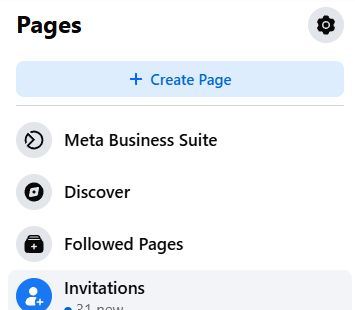
Tap or click the image to enlarge.
The live screen currently calls its list Page and profile invitations and includes invitations to follow Pages. Older guides often say “like a Page”. Use the wording shown on your screen.
On a phone: open the Facebook app’s Menu → Pages, then look for Invitations or Invites. Check the full Pages area if it initially shows only Pages you manage. If your app does not show the option, use the direct link in a browser.
A follow invite is not an admin invite
Following a Page and being given access to manage a Page are different things. If a colleague says they have invited you to manage the business Page, ask them to confirm which profile or email they invited and what access they offered.
Check your Facebook notifications and any genuine invitation email, then follow the relevant Page-access process. Do not assume that a missing follow invitation means an admin invitation was never sent. Page administration is a separate topic from this inbox tidy-up.
5Find event invitations without hunting through notifications
On a computer
- Open Events from the Facebook menu.
- Expand Your events.
- Choose Invitations.
- Open the event and check the date, location, host and current details before responding.
On a phone: open Menu → Events, then look under Your events for Invitations or Invites. The position varies between app versions.
Do not confuse Interested, Going and an invitation. In the desktop layout checked for this guide, these are separate filters under Your events. A recommended event is not proof that somebody invited you.
For a private event you cannot find, ask the host to confirm that they invited the right profile and that the event still exists. Searching for it will not necessarily reveal an event you do not have permission to view.
Group invitations are separate again. Start with the original notification or invite link and the Groups area. A pending request to join a group is your request waiting for approval, rather than an invitation you have forgotten to accept.
6Four more useful tricks for finding things
These stay with messages and invitations. We will leave sent friend requests, saved posts, account snooping and Feed controls to their own articles in the series.
1. Search the message, not just the person
In Search Messenger, try a contact’s name, a group-chat name or a distinctive word from the conversation. On desktop, choose Search messages for “[your word]” when Facebook offers it.
“Restaurant” or “invoice” can be more useful than trying to remember which of six family chats contains the details. Facebook’s main search bar searches Facebook; use Messenger’s search for messages.
2. Search inside one conversation
Already know the chat? Open it and look for the search icon or Search in its conversation information or options. Enter a word rather than scrolling back through three years of “Morning!” messages.
On a phone, tapping the person’s or group’s name opens the chat information in many layouts. Look for Search in conversation or the equivalent search control.
3. Find a shared photo or file
On the desktop conversation checked for this guide, opening Conversation information reveals Media and files, with Media and Files beneath it.
On a phone, check the chat information for its shared media or files section. This is a quicker first stop for a document or photograph than scrolling message by message. Availability depends on the conversation and the history loaded on that device.
4. Check the Marketplace conversation
For a buyer or seller, start with the relevant item or your Buying or Selling area in Marketplace, as well as searching Messenger for the person or item.
If Messenger shows a separate Marketplace category, check it. Do not assume a sales conversation must be in Message requests: Meta lists people on Marketplace among those who can message your Chats list directly.
7Still cannot find it? Work through this list
- Check the account and profile. Make sure you are using the one the sender contacted. This matters if you have more than one profile, account or a Page.
- Clear the filter. Return to All if you have selected Unread or another category. A read message will not appear in an unread-only view.
- Check Requests, Spam and Archived chats separately. They are not three names for the same folder.
- For an invitation, use its own area. Pages and Events have invitation lists; the general notification bell is not a complete filing system.
- If only an older device shows the history, check restoration. End-to-end encrypted chats may need restoring with the security method you set up, such as a PIN. Use Meta’s guidance on restoring encrypted messages. Do not delete secure storage as an experiment: that can permanently delete stored encrypted history.
- Ask the sender what they actually sent. Was it a Messenger message, an Instagram message, a Page follow invitation, an event link or Page-management access? “I sent it on Facebook” covers quite a lot of ground.
If the controls are missing or fail to load, update the app or try Facebook in an up-to-date browser. That is a sensible troubleshooting step, not a promise that every missing or deleted item can be recovered.
A two-minute check worth repeating
When you are expecting contact from somebody new, check Message requests → Spam. When somebody says they invited you, check Pages → Invitations or Events → Your events → Invitations.
No detective hat required. Although Facebook does seem determined to make you earn one.
Sources and update notes
Researched and checked on 18 October 2026. The live desktop checks covered the Message requests menu and its You may know/Spam tabs, Archived chats menu, Pages invitations, Events navigation and conversation Media and files controls. The screenshot is a real cropped desktop view, with invitation details excluded.
Android and iPhone guidance is based on Meta’s help and available menu variants; the apps were not tested directly. Button names, menu position and availability vary by account, device and rollout. Some Meta help pages retain older desktop-app or Messenger.com wording, so this guide uses Facebook’s current web messages route. No messages, invitations, privacy settings or account preferences were changed during research.
- Meta: check your message requests on Facebook
- Meta: message requests on Messenger
- Meta: about message requests
- Meta: control who can message you
- Meta: hide or archive a chat
- Meta: search for a chat or message
- Meta: options to restore encrypted chats
- Meta: consequences of resetting secure storage
- Facebook: Page invitations
- Facebook: event invitations
Need a hand? Drop me a message. And if it seems I have ignored you, perhaps remind me to check my requests!
← Back to 20 useful things to make you a Facebook super-user
Digitally Done, giving you back a little bit of control!